







Customer service is everything! I usually visit this location, but a new Texas Med Clinic opened closer to where I live, so I thought I would try that one first. It was not a good experience, so I left there and traveled 20 miles out of my way to go to the Stone Oak location. Best decision ever. I was greeted as soon as I checked into the kiosk and taken back in about ten minutes. Doctor listened to what I said, did a strep and flu test and concluded that I have the flu. Thoroughly went over all of my options, even checked prescription prices as I am a paying for everything out of pocket. I truly couldn’t have asked for more.
Telemedicine
How To Prep For Your Virtual Appointment
Urgent Care Wherever You Are
If you can’t make it into one of our 19 convenient locations, we are happy to offer you the convenience of virtual appointments to treat Life’s Little Emergencies.
We want your virtual visit to go well. Here is how to get ready for your online appointment.
Before Your Visit:
Make sure your device has a working camera and microphone, so your provider can see and hear you.
Download the free Zoom app on your mobile device.If on a desktop the web browser client will download automatically when you start or join your first Zoom meeting.
Write down any questions you may have.
When It’s Time For Your Appointment:
Choose a quiet and private location for your appointment.
Make sure you have a strong internet connection at your location.
When it’s time for your appointment, choose your clinic location below and get the link for your appointment.
Telemedicine Zoom Links
Select your location and click meeting link to join:
Meeting Link: https://texasmedclinic.zoom.us/j/3811278269
Meeting Link: https://texasmedclinic.zoom.us/j/5998508077
Meeting Link: https://texasmedclinic.zoom.us/j/4949234414
Meeting Link: https://texasmedclinic.zoom.us/j/9412261639
Meeting Link: https://texasmedclinic.zoom.us/j/2200942566
Meeting Link: https://texasmedclinic.zoom.us/j/3360942820
Meeting Link: https://texasmedclinic.zoom.us/j/4981195942
Meeting Link: https://texasmedclinic.zoom.us/j/8031522879
Meeting Link: https://texasmedclinic.zoom.us/j/8435736838
Meeting Link: https://texasmedclinic.zoom.us/j/9808425554
Meeting Link: https://texasmedclinic.zoom.us/j/2010814298
Meeting Link: https://texasmedclinic.zoom.us/j/3851634844
Meeting Link: https://texasmedclinic.zoom.us/j/4376204739
Meeting Link: https://texasmedclinic.zoom.us/j/9588540207
Meeting Link: https://texasmedclinic.zoom.us/j/4134058509
Meeting Link: https://texasmedclinic.zoom.us/j/2372333832
Meeting Link: https://texasmedclinic.zoom.us/j/4119491238
Meeting Link: https://texasmedclinic.zoom.us/j/9772862765
Meeting Link: https://texasmedclinic.zoom.us/j/4846303924
After you’ve successfully connected to Zoom, proceed to steps 4-6:
Enter your name and click OK.
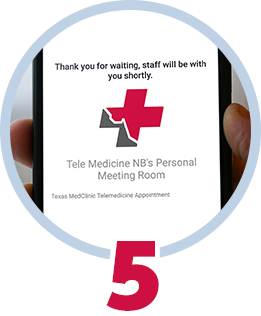
You will be taken to the waiting room until your appointment starts.
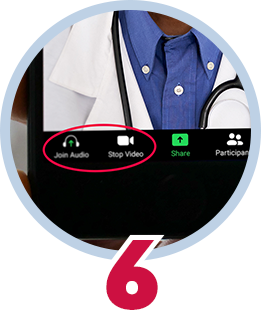
Once you’re in, make sure your audio and video are on.


